Recover Tabs with Action Recovery Center
Search, restore, delete, and understand recent supported close records from both browser and OneDock actions.
Updated 2026-09-02Applies to v1.2.2+6 min read
Action Recovery Center, introduced in OneDock v1.2.0, is a local undo history for supported tab-closing events. It can include browser-side closes as well as OneDock's single-tab, batch, and window close paths. It is not limited to actions initiated inside OneDock.
Use it as soon as you notice a mistake. The Center holds about 100 recent entries, stores them only on the current device, and removes older records as newer activity arrives.
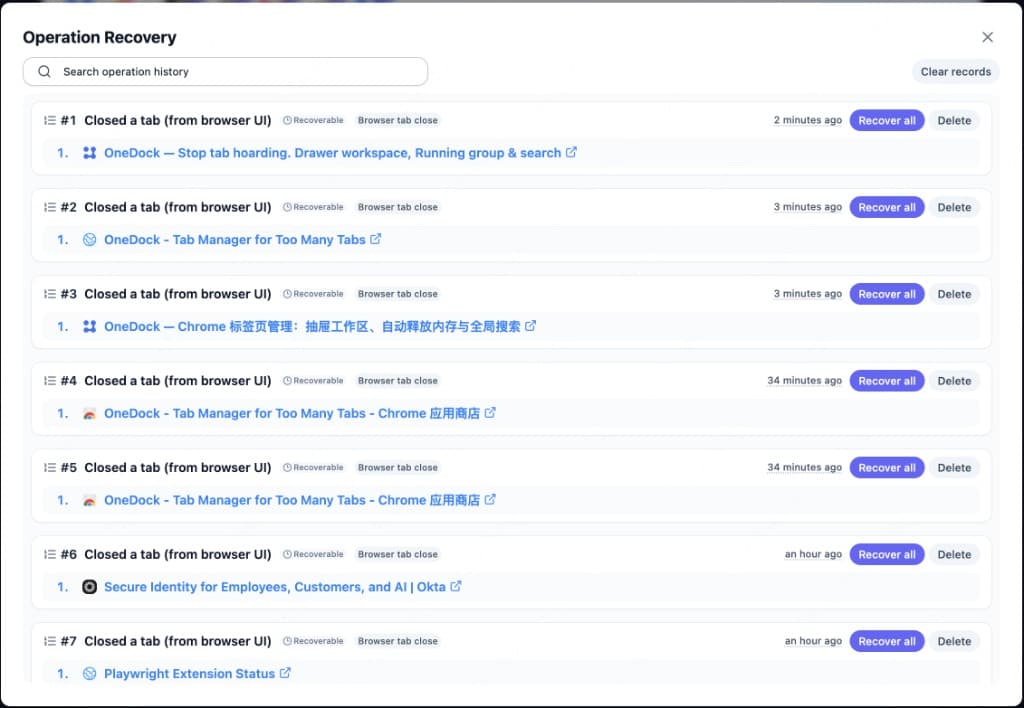
What can be recorded
In v1.2.2, supported records can come from:
- browser-side tab closing;
- OneDock single-tab closes;
- OneDock batch closes, such as supported site, duplicate, age, or below actions;
- supported whole-window closes;
- other close paths explicitly shown with a source label in the current interface.
The source distinction helps explain whether a tab was closed through Chrome itself, an individual OneDock row action, or a larger cleanup. Not every kind of loss is recoverable: do not assume that a browser crash, extension shutdown, or operating-system event will create a record. If an item is not listed in the Center, OneDock has no recovery record for it.
Find the right record
Open the Drawer from the extension popup or its shortcut: Option+Q on macOS and Alt+W on Windows/Linux by default. Chrome's Extension shortcuts page shows your actual binding. Then use the recovery control in the Drawer toolbar to open Action Recovery Center.
Search for a title, website, or other clue, and use the source and grouping to choose the correct event. A cleanup can generate a recognizable batch or window record rather than a long set of unrelated-looking single actions.
The approximate 100-entry limit is based on actions, not a promise of a fixed number of days. A large cleanup can move older records out quickly.
Restore one or several tabs
Recovery Center supports restoring an individual item or multiple selected items. For a closed window or batch:
- Check the source and time.
- Review the contained tabs when the interface offers that detail.
- Select only the pages still needed, or restore the full set when the whole context matters.
- After restoration, use Window Monitor or Open tabs to confirm where the reopened pages appear.
Restoration reopens URLs. It cannot guarantee recovery of unsaved form text, a checkout step, a terminal process, an expired authentication flow, or any state the website did not persist. Save important work before cleanup even when recovery is available.
Delete records carefully
You can delete a single record after confirming it is no longer useful. You can also clear all Recovery Center history.
Clearing the Center is irreversible. It does not close currently open tabs, but the cleared undo history cannot be recovered from OneDock or Google Drive. If you are clearing for privacy or housekeeping, review recent window and batch actions first.
Do not confuse four kinds of history
Action Recovery Center is an action-oriented undo log. Each record shows where a supported close came from, and you can restore multiple items together.
Recently Closed in global search is a finding surface. It can surface closed pages alongside Open tabs, WebApps, Groups, Favorites, and History. It is useful when you remember a title, but it is not the same batch/action record view. See Find the Site, Then the Page.
Chrome browsing history records visited URLs according to Chrome's own behavior. It is useful for “I visited this last week,” but it does not describe a OneDock cleanup batch or guarantee the same restoration controls.
Bookmarks or OneDock favorites are intentional long-term references. Use them for pages you want to retain, not for reconstructing a recent mistake.
Know what never enters Recovery Center
Auto memory reclaim uses Chrome discard and leaves the tab in the tab bar. Because no close occurs, sleep and wake events do not create Recovery Center records. A dashed ring in Open tabs marks a discarded tab; selecting it reloads the page.
Moving a live tab to the current window is also not a close/restore cycle. Likewise, simply opening or closing the Drawer changes no tab and produces no recovery event.
Keep the local boundary in mind
Recovery Center history stays on this device. Closing a batch on a laptop does not create a matching recovery record on a desktop.
Google Drive backup includes OneDock groups, favorites, site profiles, and preferences. It excludes open tabs, Chrome window layout, and Recovery Center history. Running order, pin order, and close-later flags are local as well.
Use recovery as the final safety net, not the first cleanup strategy. Mark exceptions, preview site or window candidates, and choose the narrowest close action. The full workflow is in Clean Up Tabs Without Losing Your Place.
Install OneDock from Add to Chrome, review Drawer basics in Getting Started, and check recovery changes in the Changelog.
Related guides
Try OneDock in Chrome
See everything, find faster, clean without fear, and keep Chrome light.
Add to Chrome