Clean Up Tabs Without Losing Your Place
Mark exceptions, choose precise close actions, and use OneDock's local recovery history when cleanup goes wrong.
Updated 2026-09-02Applies to v1.2.2+7 min read
A large tab cleanup feels risky because the list contains both obvious clutter and pages that still matter. OneDock gives you narrow close actions, local recovery, and two ways to mark exceptions—but those safeguards have specific boundaries.
Start with disposable pages the first time. Do not test cleanup on an unsaved document, checkout, upload, or long form.
Understand pin and close-later
In v1.2.2, quick close and similar supported batch cleanup actions skip pinned and close-later tabs. A single-tab close can still close either one.
Do not assume that every bulk command will ignore a pinned or flagged tab. Read the candidate preview or confirmation for the action you are about to use. These markers also do not protect page state from reload, browser shutdown, or auto memory reclaim.
Use the markers for different intentions:
- Pin a tab when it belongs at the top of Open tabs for frequent access. Pinned tabs are full rows and can be drag-reordered.
- Close later when a tab is an explicit exception during a cleanup but is not necessarily a permanent fixture.
Neither replaces saving work. Recovery can reopen a URL, but it cannot guarantee restoration of text or application state that existed only in page memory.
Know the cleanup actions
Choose the narrowest action that matches the problem:
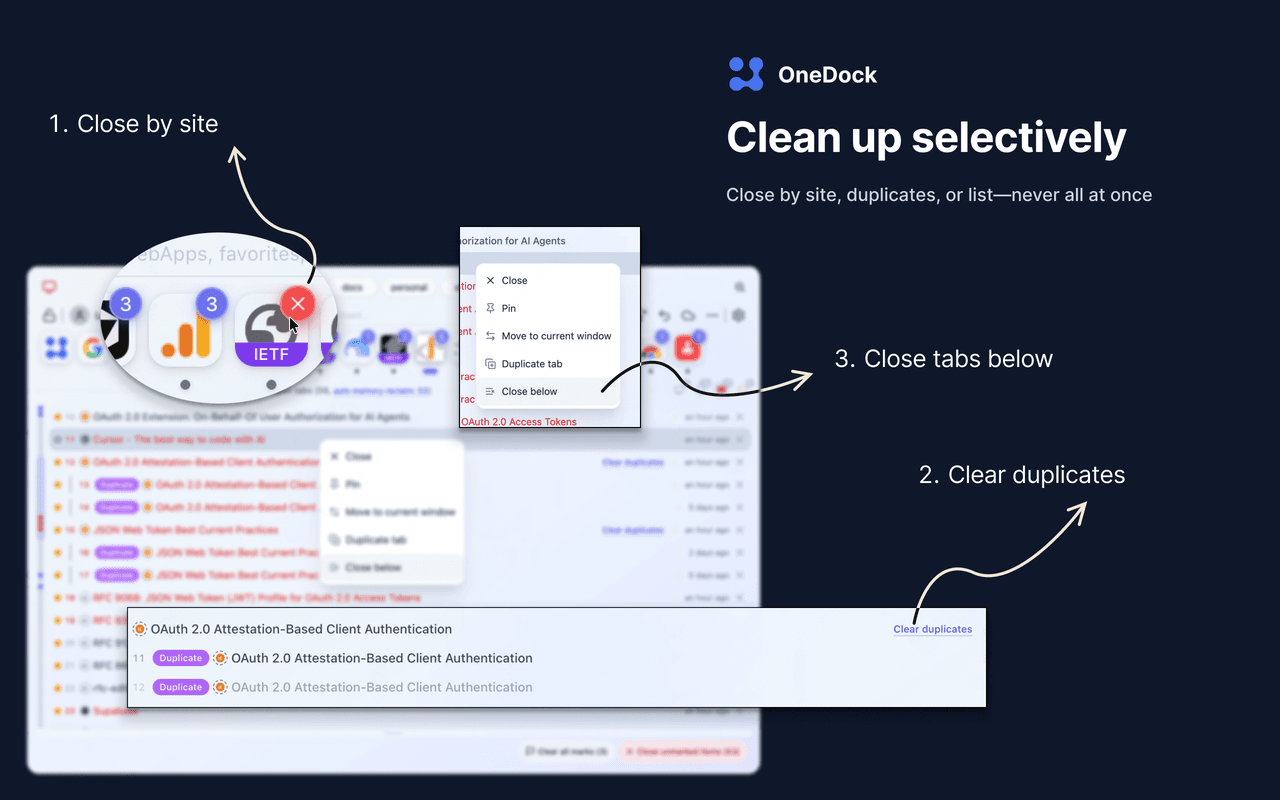
- Close by site: remove tabs from a specific website after reviewing that site's list.
- Clear duplicates: close duplicate URLs as a batch while retaining the copy the action designates to keep.
- Close older tabs: use age as a candidate rule, then inspect exceptions; age is not importance.
- Close below: close rows after a chosen boundary in the current list. This is especially sensitive to the active filter and ordering.
- Close this and below: available from Recently Visited for a boundary-based batch close.
- Close a window: use Window Monitor's badge after previewing the entire window.
Do not confuse clear duplicates with duplicate tab. The first is a cleanup operation that closes repeated tabs. The second creates another copy of the selected tab.
Use the row context menu precisely
In v1.2.2, a tab row's context menu can include:
- close;
- duplicate tab;
- activate and move to current window;
- close duplicate batch;
- pin/unpin;
- close below.
Menus depend on the selected tab, so check its current row menu if an item is unavailable. Activate and move to current window changes where a live tab resides; it is not a copy or a restore operation.
Follow a safe cleanup sequence
- Save page state. Save documents, drafts, forms, uploads, and work in browser-based tools.
- Open the Drawer. Use the extension popup, Option+Q on macOS, or Alt+W on Windows/Linux. Confirm the actual binding in Chrome Extension shortcuts.
- Narrow the list. Hover and click a Dock website, or use a Window Monitor filter. The site-first workflow explains both.
- Mark exceptions. Pin frequent tabs or mark temporary exceptions close-later.
- Clear duplicates first. This usually removes the least ambiguous clutter. Verify that you selected the cleanup action, not duplicate tab.
- Review one site at a time. Close an entire site only when its task is complete.
- Use age, below, or window actions last. Check the exact boundary or candidate set immediately before confirming.
- Verify the result. Look for missing work before continuing with another large batch.
This sequence is slower than a blind “close everything,” but it limits the size of each mistake and makes recovery easier to recognize.
Recover supported close actions
The Action Recovery Center, introduced in v1.2.0, records supported close sources including browser-side closes and OneDock single, batch, and window closes. Source labels help distinguish how an item was closed.
It keeps about 100 entries locally. You can search, restore one or several items, delete an entry, or clear the list. Clearing is irreversible, and older records eventually roll off. Recovery reopens URLs; it is not a bookmark system or a guarantee of unsaved page state.
Closing is not sleeping
Closing removes a tab from Chrome. Auto memory reclaim uses Chrome discard: the tab stays visible and reloads when selected. Sleep actions do not enter Recovery Center because no tab was closed.
Do not assume that pin or close-later prevents memory reclaim. OneDock protects the currently active tab in each Chrome window; other background tabs remain eligible under your rules. See Auto Memory Release before using aggressive settings.
Google Drive backup contains groups, favorites, site profiles, and preferences—not open tabs, window layout, Recovery Center history, Running order, pin order, or close-later flags. Bookmark long-term references.
Install OneDock from Add to Chrome and review changed cleanup behavior in the Changelog.
Related guides
Try OneDock in Chrome
See everything, find faster, clean without fear, and keep Chrome light.
Add to Chrome