Find the Site, Then the Page
Find tabs with Dock site filters, Minimap, Running, Window Monitor, global search, and Recently Visited.
Updated 2026-09-02Applies to v1.2.2+7 min read
When Chrome shows only favicons and fragments of titles, looking tab by tab becomes slow. You often remember the source before the exact title: “that GitHub issue,” “the hotel page,” or “the document in my work window.”
OneDock's usual path is: find the site first, then find the page. Open the Drawer with Option+Q on macOS or Alt+W on Windows/Linux, or use the extension popup. Check Chrome's Extension shortcuts page if you need to confirm or change the actual binding.
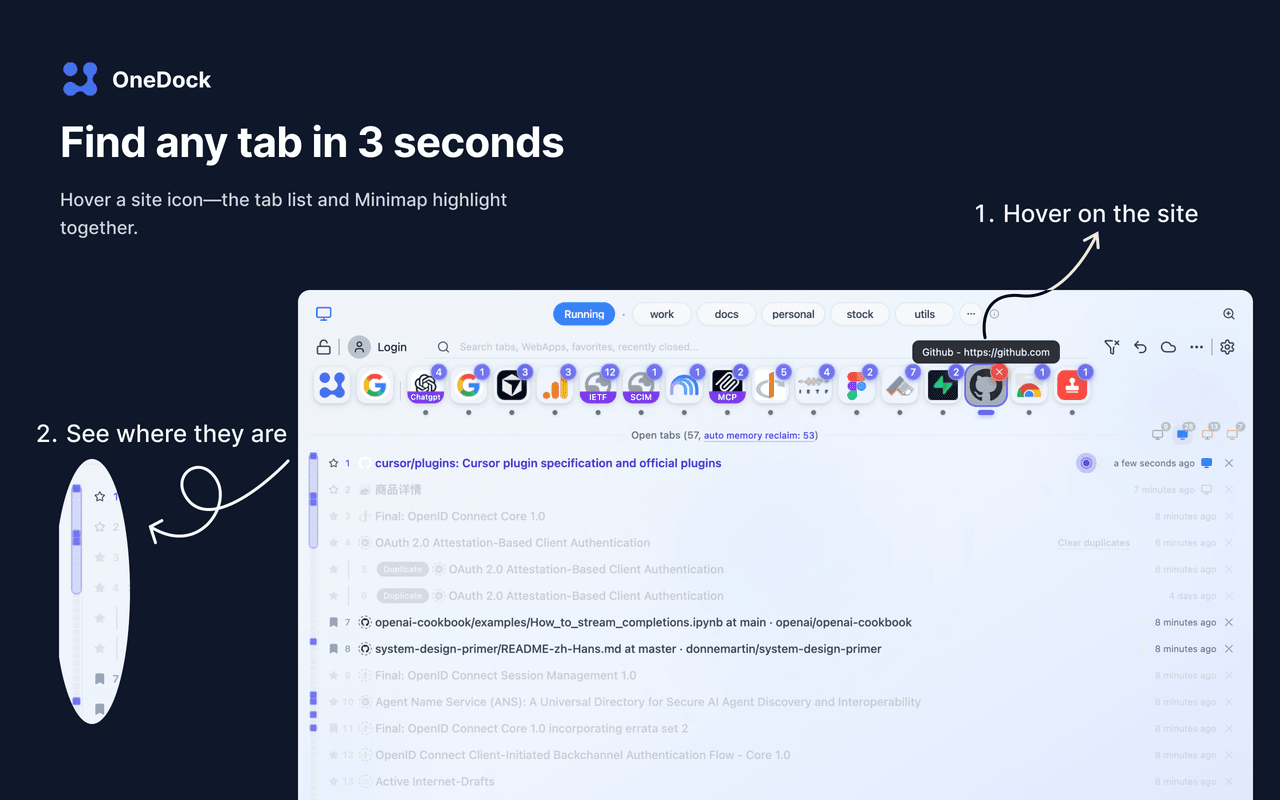
Start with a Dock website
Website icons in the Dock correspond to sites represented in your workspace. Their two interactions are deliberately different:
- Hover a website icon for a temporary look. Matching rows in Open tabs and matching marks in the Minimap are highlighted or filtered together.
- Click the icon to lock that website filter while you inspect or act on the shorter list.
For example, if 70 tabs include eight from GitHub, hover GitHub to confirm that it is the right site, then click it to keep only those candidates in view. Read titles only after the list is narrow. Clear the locked filter when you need the global list again.
Use the Minimap as vertical navigation
The Minimap is not a website selector. It is a compressed vertical navigation view of the Open tabs list. In v1.2.2 it covers both pinned rows at the top and unpinned rows below.
Use it to understand the length and distribution of a long list, jump through it, and see the same site-hover response as the tab rows. This is especially useful when Open tabs remains at its default 240px height. Dragging the list edge gives you more visible rows; the selected height is saved locally.
Know what Running means
Running is the leftmost virtual group in the Dock. It represents websites that are currently running and gives them a dedicated Dock ordering. It can be drag-reordered, but that order is stored only on this device and is not part of Google Drive backup.
Do not reduce Running to a generic toolbar filter: it is a virtual Dock group with its own place in group navigation and its own local ordering. The exact membership should follow what the current v1.2.2 UI shows. A discarded tab is still open in Chrome, so use the full Open tabs list if the Running view does not contain the page you expect.
To move through Dock groups without clicking, use Option+Left/Right Arrow on macOS or Alt+Left/Right Arrow on Windows/Linux. Running participates in that cycle. If these keys conflict with browser or operating-system commands, rely on the current shortcut settings and UI controls.
Add Window Monitor when location matters
Site grouping is global, which is often helpful: all tabs from one website can appear together across windows. When you remember the window as well as the site, use the window icons in the Open tabs header.
Window Monitor can filter the list to one window, show a hover preview, and switch windows. Apply the window filter and then the Dock site filter to answer a question such as “which GitHub issue is in my research window?” See Managing Tabs Across Chrome Windows before using its window-close badge.
Search across six sources
Global search is focused automatically when the Drawer opens. It can cover:
- Open tabs
- WebApps
- Groups
- Favorites
- History
- Recently Closed
Results are separated by type. The initial overview keeps each section compact, and view more opens the fuller set for a result type. Always check the heading before acting: an Open tabs result switches to an existing tab, while a History or Recently Closed result may open a page again.
When the field is focused, recent search keywords can be selected instead of retyping them. Search “invoice,” for example, might show a currently open billing page, a favorite, a browser-history visit, and a recently closed receipt. Prefer the Open tabs result if the goal is to continue existing work.
WebApps can have nicknames to make narrow Dock and search surfaces easier to scan. In v1.2.2, the limit is about 6 Chinese, Japanese, or Korean characters, or about 10 Latin characters. For mixed scripts and edge cases, follow the validation shown in the nickname editor.
Use Recently Visited for “where was I?”
Recently Visited is ordered by the most recent tab activation, not simply when a URL was first opened. Window colors help identify where an item lives, and the heat/flame indicator provides an activity hint.
From this list you can close one item or choose close this and below. The latter is a real batch close, so inspect the boundary and save unsaved work first. Its list height is resizable and remembered locally.
Recently Visited is useful when you remember using the tab moments ago but cannot name the site. It is different from Recently Closed: one points to recent live-tab activity, while the other helps reopen pages that were closed.
A reliable lookup order
- Hover the website you remember.
- Click it to lock the filter if the matches look right.
- Add a Window Monitor filter if there are still too many results.
- Use Recently Visited when the clue is “I just used it.”
- Use global search when the clue is a title, topic, favorite, group, history visit, or closed page.
This workflow needs no up-front filing project. Groups and nicknames help repeated work, but automatic site matching already reduces the scan.
Read Why OneDock Uses a Drawer for layout controls and Action Recovery Center for close records. Install from Add to Chrome and check search changes in the Changelog.
Related guides
Try OneDock in Chrome
See everything, find faster, clean without fear, and keep Chrome light.
Add to Chrome