Why OneDock Uses a Drawer
Understand OneDock's temporary Drawer, adjust its tab list and Dock scale, and decide when to keep it open or closed.
Updated 2026-09-02Applies to v1.2.2+6 min read
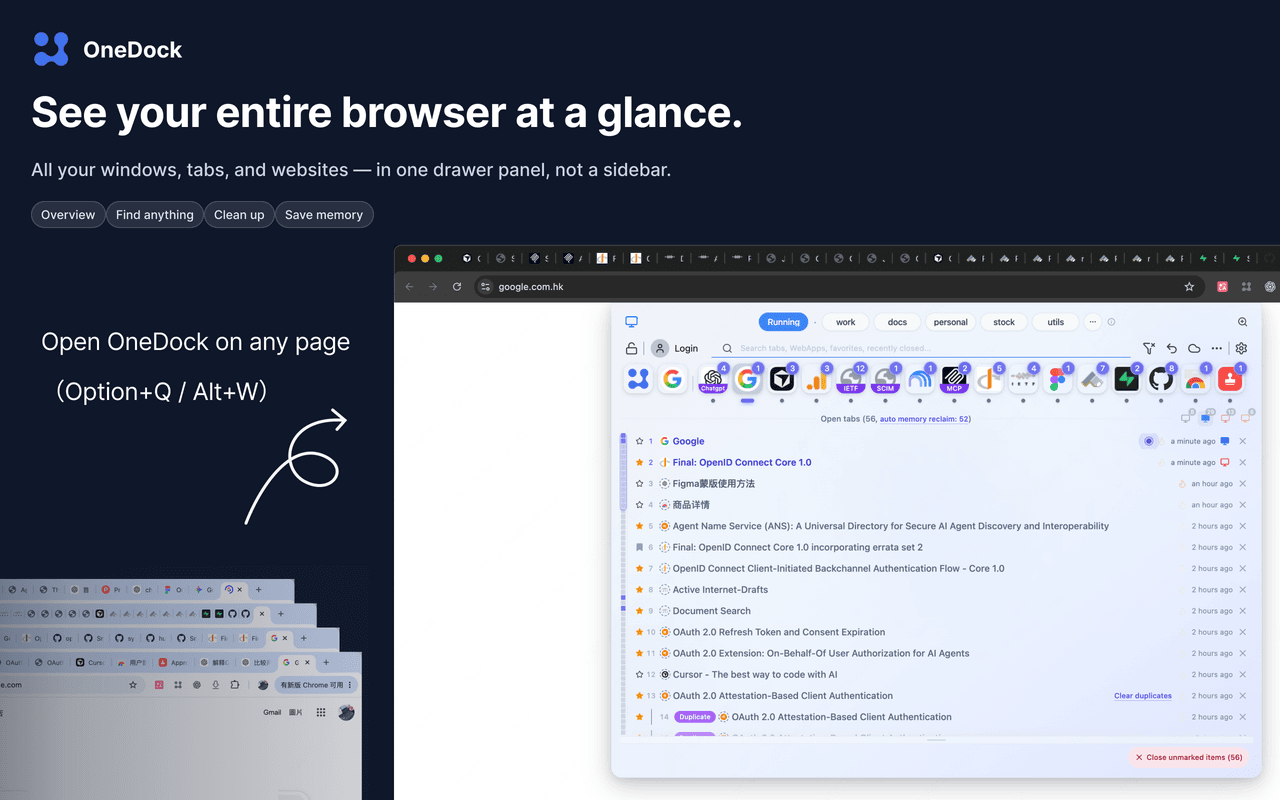
OneDock's main interface is a Drawer over the current page, not a permanent browser sidebar. It is intentionally temporary: open it for a tab task, then close it and return to the full-width webpage underneath.
This distinction matters on laptops, in web editors, and on sites that change layout when horizontal space becomes narrow. The Drawer uses substantial space while open, but uses none when closed.
Open and close the Drawer
Use either entry point:
- Press Option+Q on macOS or Alt+W on Windows/Linux.
- Open the OneDock extension popup and use its Drawer open/close control.
Those are the default shortcuts. Chrome's Extensions → Manage extensions → Keyboard shortcuts page shows the binding actually registered for your installation and lets you change it. If the shortcut does nothing, check there for an unassigned command or conflict.
Press the shortcut again, use the popup, or dismiss the Drawer when the task is complete. Closing it does not close, save, move, pin, or discard any tab.
Drawer and sidebar solve different problems
A permanent sidebar is always available for quick glances. Its cost is persistent page width, and it can cause spreadsheets, code editors, dashboards, and responsive sites to reflow.
OneDock makes the opposite trade-off. It covers part of the current page while open and requires a shortcut or popup click, but leaves no management panel behind afterward. It also does not replace Chrome's tab bar or convert open tabs into saved links. The Drawer is a second view of the same live tabs, including tabs in other Chrome windows.
Chrome is fully supported on macOS, Windows, and Linux. Other Chromium browsers are only expected to work, so their popup, keyboard-shortcut, or page-injection behavior may differ.
Adjust the always-expanded Open tabs list
In v1.2.2, Open tabs stays expanded. There is no collapse toggle. The default list height is 240px; drag the list edge to make more or fewer rows visible. OneDock saves the chosen height locally on this device.
Pinned tabs use full rows at the top of Open tabs and can be drag-reordered. The vertical Minimap represents both pinned and unpinned rows, so resizing the list changes how much you can read directly without changing what remains open.
Collapsing the Drawer itself is different from resizing the list. Closing the Drawer merely hides OneDock. Resizing Open tabs changes its saved presentation. Neither action alters the underlying Chrome tabs.
Set Dock zoom for your screen
Dock zoom ranges from 100% to 150%. A larger value makes icons and controls easier to target; 100% leaves more room when many sites and groups are visible. Choose a scale that keeps the labels readable without crowding your normal Drawer workflow.
There is no single best zoom for every screen size. If the control has moved or its label has changed, follow the current settings page.
Understand screenshot previews and permission
OneDock captures tab screenshot previews only while the Drawer is visible. A preview for a website also requires the corresponding site access permission. This avoids treating screenshot access as an always-running background feature.
If permission is not granted, the preview may be unavailable or show an explanatory empty state. Other features—such as reading tab titles, filtering by site or window, searching, switching, and closing—continue to work. Some browser or protected pages may not be capturable even when ordinary websites are.
Save page work before any reload or memory action. Screenshot permission does not protect unsaved form state, and closing the Drawer does not freeze a page.
When to keep it open
Keep the Drawer open while you are actively:
- comparing titles from one website;
- using the Minimap to move through a long Open tabs list;
- previewing several windows before choosing one;
- marking exceptions before a cleanup;
- reviewing search results across several result types.
For example, with travel research across two windows, open the Drawer, filter the hotel site, add a Window Monitor filter if necessary, and compare the remaining page titles. The site-first guide explains the filters; Managing Tabs Across Chrome Windows covers the window controls.
When to close it
Close the Drawer while writing, reading, watching video, presenting, or using a page that benefits from full width. With only a few tabs, Chrome's normal controls may already be faster.
Auto memory release runs according to its own setting; it is not enabled, disabled, or triggered simply by showing or hiding the Drawer. Likewise, a close action occurs only when you choose one. Supported recent closes may appear in the local Action Recovery Center.
Start with Getting Started, review interface changes in the Changelog, or install the current extension from Add to Chrome.
Related guides
Try OneDock in Chrome
See everything, find faster, clean without fear, and keep Chrome light.
Add to Chrome