Getting Started with OneDock
Install OneDock, refresh existing pages safely, learn the Drawer, and complete a practical first tab-management session.
Updated 2026-09-02Applies to v1.2.2+6 min read
OneDock is built for the point where Chrome's tab bar no longer tells you enough: titles are compressed, similar favicons repeat, and useful pages are spread across windows. The current Chrome Web Store release is OneDock - Tab Manager for Too Many Tabs, v1.2.2.
It works as a Drawer over the page you are viewing. Open it to find, organize, or clean up live tabs, then close it to give the webpage its full width again.
1. Install and confirm browser support
Install the extension from the official listing: Add to Chrome. Chrome is fully supported on macOS, Windows, and Linux. Other Chromium-based browsers are expected to work, but their extension controls and compatibility may differ.
After installation, pinning OneDock to Chrome's toolbar is optional. The toolbar icon opens the extension popup, which is useful while you learn the keyboard shortcut.
2. Refresh pages that were already open
Chrome cannot always inject a newly installed or updated extension into pages that were already open. From the extension popup or User Guide, choose Refresh all pages if OneDock does not appear on those pages.
This action reloads every open tab that is not currently discarded. Before using it:
- Save text in forms, editors, email drafts, and documents.
- Finish or pause uploads, checkouts, and other in-page work.
- Then run Refresh all pages and wait for the affected pages to reload.
Discarded tabs are not refreshed by this command. They remain in Chrome and load again when selected.
3. Open the Drawer
The default shortcut is:
- macOS: Option+Q
- Windows/Linux: Alt+W
The extension popup can also open or close the Drawer. To see or change the shortcut Chrome is actually using, open Extensions → Manage extensions → Keyboard shortcuts. A conflict with another extension can leave the default unassigned.
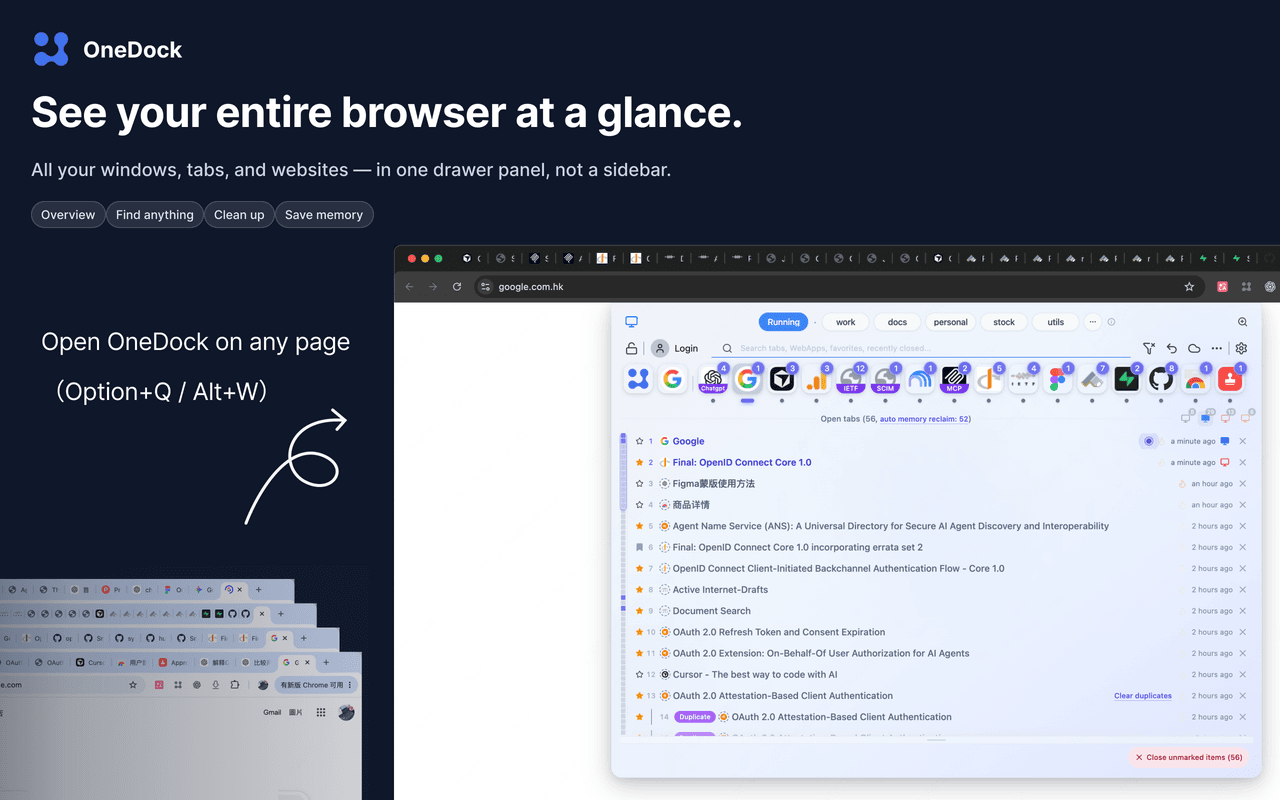
4. Learn the UI map
You only need a few landmarks for the first session:
- Dock: website icons that narrow the tab list. Running, at the far left, is the virtual group for websites currently running.
- Open tabs: the always-expanded list of live tabs across Chrome windows. Its default height is 240px and can be resized.
- Pinned rows: pinned tabs appear as full rows at the top of Open tabs.
- Minimap: a compact vertical navigation view of both pinned and unpinned rows. It is not a website picker.
- Window Monitor: window icons in the Open tabs header for filtering, previewing, and switching windows.
- Global search: focused automatically when the Drawer opens; useful when you remember a title or topic rather than a website.
The Drawer reflects Chrome's current tabs; it does not move them into a separate saved list. Closing the Drawer changes only the interface, not the tabs.
5. Complete a 5–10 minute practice session
Use disposable pages rather than unfinished work:
- Open three pages from one website and two from another.
- Open the Drawer with the popup or shortcut.
- Hover over the first website icon and watch the matching Open tabs rows and Minimap react.
- Click the icon to lock that site filter, then click the same control or return to the wider view.
- Use Window Monitor if the pages are split across two windows.
- Search for one page by a word from its title and switch to the Open tabs result.
- Duplicate one test page, then use the duplicate-cleanup action. Do not confuse it with the row menu's duplicate tab, which creates another copy.
- Open the local Action Recovery Center and restore the closed test tab if that action was recorded.
Tab screenshot previews are captured only while the Drawer is visible and require site access permission for the relevant website. Declining that permission removes the preview, not the rest of OneDock's tab-management features.
What to read next
- Use Why OneDock Uses a Drawer to adjust Drawer size and Dock zoom.
- Read Find the Site, Then the Page for filters, Minimap, search, and Recently Visited.
- Read Clean Up Tabs Without Losing Your Place before closing a large set.
- Review Auto Memory Release before relying on tab discard around unsaved work.
Google Drive backup covers groups, favorites, site profiles, and preferences. It does not preserve open tabs, window layout, Recovery Center history, Running order, pin order, or close-later flags. Check the Changelog when the interface differs from this guide.
Related guides
Try OneDock in Chrome
See everything, find faster, clean without fear, and keep Chrome light.
Add to Chrome