Use Auto Memory Release Without Closing Tabs
Configure OneDock's v1.2.2 discard rules, recognize sleeping tabs, and balance memory savings against page reloads.
Updated 2026-09-02Applies to v1.2.2+7 min read
OneDock v1.2.2 introduced auto memory reclaim for people who need many tabs available but do not need every page loaded. It uses Chrome's tab discard mechanism: page memory is released while the tab remains in Chrome's tab bar and OneDock's Open tabs list.
Selecting a discarded tab reloads its URL. This is tab sleep, not tab close, and it does not write an entry to Action Recovery Center.
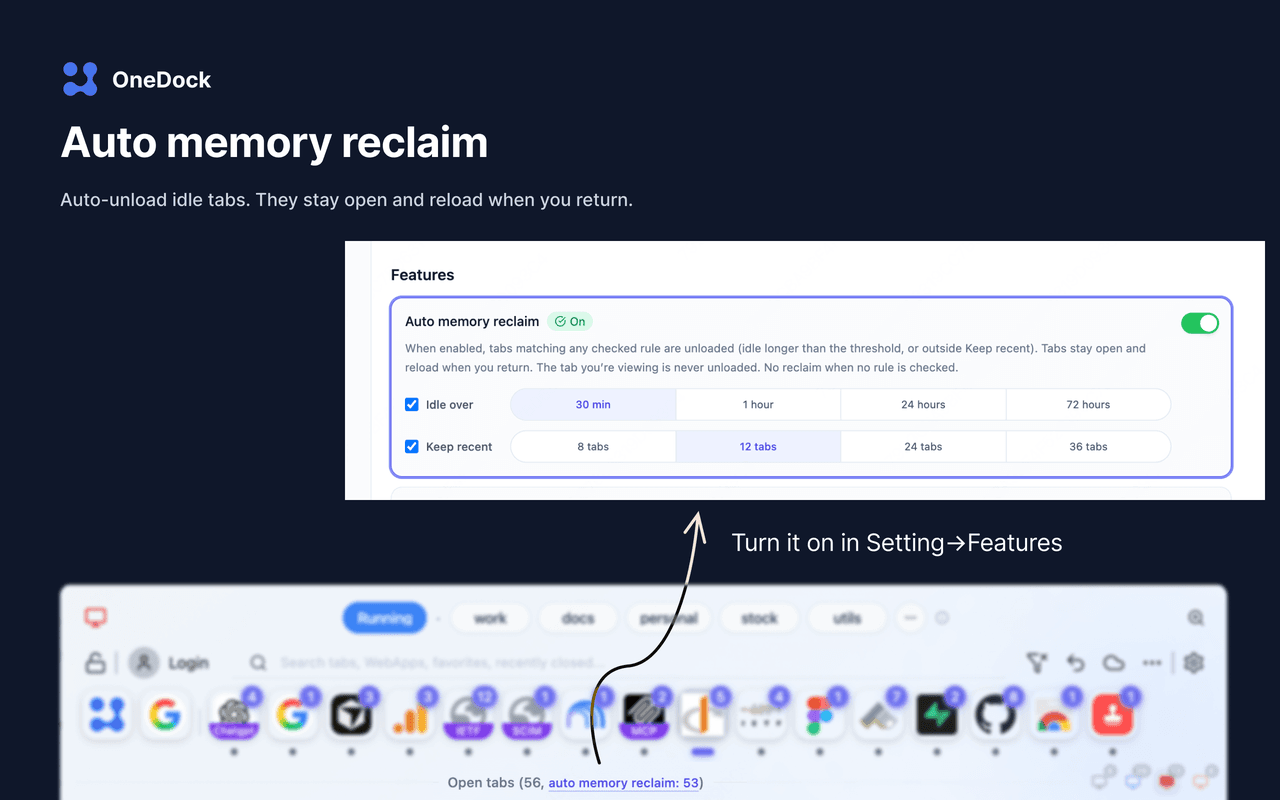
Open the complete settings
Open Settings → Features and find auto memory reclaim. In v1.2.2, you will see:
- a master switch, on by default;
- an Idle over rule that can be checked or unchecked;
- a Keep recent rule that can be checked or unchecked.
The idle choices are:
- 30 minutes
- 1 hour
- 24 hours
- 72 hours
The recent-tab choices are:
- 8 tabs
- 12 tabs
- 24 tabs
- 36 tabs
The defaults are Idle over 1 hour and Keep recent 12 tabs.
Understand the ANY rule
The two checked rules are combined with ANY, not ALL. A background tab can become eligible when any enabled rule matches:
- With only Idle over 1 hour checked, an eligible background tab can be discarded after crossing that idle threshold.
- With only Keep recent 12 tabs checked, tabs outside the recent-12 allowance can be eligible even if they are not one hour old.
- With both checked, meeting either condition is enough. A tab does not have to be both old and outside the recent set.
- With both sub-rules unchecked, OneDock does not reclaim tabs, even if the master switch remains on.
Turn off the master switch when you want the entire feature disabled. If the exact control labels differ after an update, follow the current Settings → Features page and the Changelog.
Know what OneDock always keeps active
The currently active tab in each Chrome window is never discarded by OneDock. With four open windows, each window's selected tab receives that protection.
Do not assume that pinning or marking a tab close-later exempts it from memory reclaim. Those markers protect against quick close and similar supported batch-close actions. For memory reclaim, OneDock protects the active tab in each window.
Chrome and individual websites can also affect whether a page can be discarded. Do not assume that media, downloads, background jobs, or special browser pages receive extra protection; check critical work directly.
Recognize discarded tabs
The Open tabs header shows a reclaim/discard count and provides a link to the relevant settings. In the list, a discarded tab's icon has a dashed ring. The tab itself still appears in OneDock and Chrome.
If a tab disappears from the tab bar, it was closed, not merely discarded. If it remains but reloads when selected, discard is a likely explanation. Opening it is the wake-up path; there is no Recovery Center restore because no close occurred.
Decide what is safe to sleep
Good candidates usually include static documentation, articles, product comparisons, and reference pages whose current URL is enough to return to the content.
Use caution with:
- unsaved forms and email drafts;
- browser editors whose latest changes have not synced;
- checkout, authentication, and multi-step flows;
- dashboards, terminals, calls, uploads, or pages doing background work;
- content that may change or expire before reload.
Discard does not store a frozen copy. On return, the site loads its current response. Login state, temporary navigation state, and in-memory text may differ or be gone.
Tune the rules by workflow
Start from the default for a normal mix of reading and web apps. Then change one dimension at a time:
- Too many surprise reloads: raise Idle over to 24 or 72 hours, raise Keep recent to 24 or 36, or uncheck the more disruptive rule.
- Memory remains high with many references: consider 30 minutes or 1 hour and Keep recent 8 or 12, after saving active work.
- Mostly static research: a shorter idle value may be tolerable because URLs are usually sufficient.
- Many editors and dashboards: prefer longer idle and a larger recent allowance, or turn the feature off during sensitive work.
Because the logic is ANY, enabling a lenient idle threshold alongside a strict recent limit is still strict for tabs outside the recent set. If you are troubleshooting, enable one rule at a time to see which one creates the reload pattern.
Keep sleep separate from cleanup
Memory reclaim can make Chrome lighter while leaving the same number of tabs visible. Cleanup shortens the tab list by closing tabs. Use Clean Up Tabs Without Losing Your Place when the work is finished, and Managing Tabs Across Chrome Windows to identify each window's protected active tab.
Neither open tabs nor their discard state are backed up to Google Drive. Drive backup covers groups, favorites, site profiles, and preferences; Recovery Center history is also local.
Install the current extension from Add to Chrome and check Changelog before relying on settings that look different from this v1.2.2 guide.
Related guides
Try OneDock in Chrome
See everything, find faster, clean without fear, and keep Chrome light.
Add to Chrome