Manage Tabs Across Chrome Windows
Use Window Monitor to filter, preview, switch, move, and safely close tabs across multiple Chrome windows.
Updated 2026-09-02Applies to v1.2.2+6 min read
Multiple Chrome windows are useful for separating work, personal browsing, presentations, and temporary research. The problem begins when you remember the page but not the window—or when several windows have nearly identical active-tab titles.
OneDock starts with a global Open tabs list and adds Window Monitor when window location matters. Open the Drawer with the extension popup, Option+Q on macOS, or Alt+W on Windows/Linux. Confirm or remap the actual shortcut in Chrome's Extension shortcuts page.
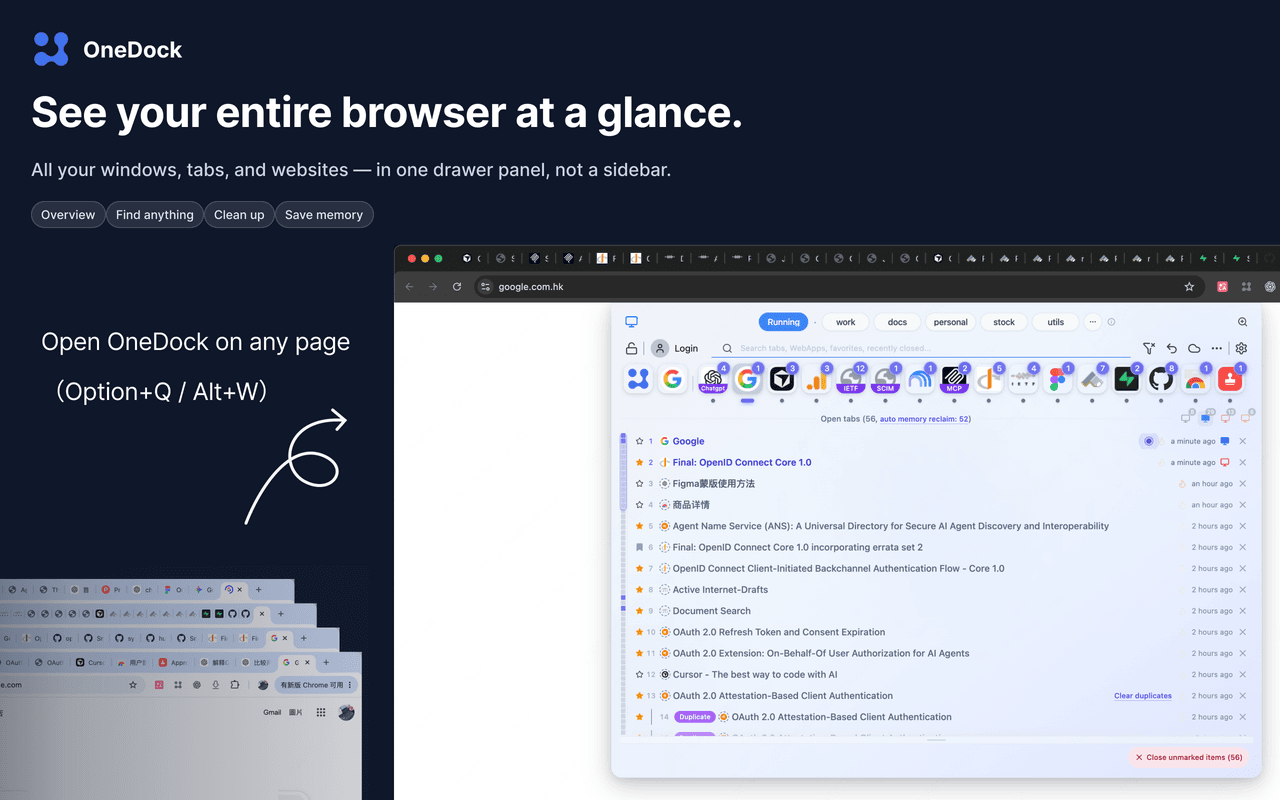
Find Window Monitor
Window Monitor is the set of window icons in the Open tabs header. It is not a separate page and not a generic Dock group. Each icon represents a current Chrome window.
The global list is often enough: hover or click a website in the Dock to gather its pages across windows. Add Window Monitor when you need to distinguish “GitHub in my main work window” from “GitHub in my scratch window.” The site-first guide explains how the filters work together.
Use its four core abilities
In v1.2.2, each window control lets you:
- Filter by window. Narrow Open tabs to the selected window, then apply a site filter or inspect titles.
- Hover preview. Check the window's active page and identity without first bringing it to the front.
- Switch window. Activate the chosen Chrome window from the Drawer.
- Close all tabs in that window from the badge. This is a destructive window-level action and writes a supported record to Action Recovery Center.
Avoid memorizing icon order as a durable identity. Windows are opened, closed, and rearranged during the day. Preview or filter before acting.
Read the preview card
The window preview card can show:
- the active tab's screenshot;
- active-tab title;
- tab count;
- window color.
Expand the card to pick an individual tab when the summary is not enough. Screenshot availability depends on the Drawer being visible and the relevant site access permission; missing permission does not disable filtering, switching, moving, or closing.
Window color is a practical cue, not a substitute for checking contents. Two windows can contain similar pages, and a screenshot may be stale or unavailable for protected pages. Use the expanded tab list before a large action.
Move a tab into the current window
Open a tab row's context menu and choose activate and move to current window. OneDock brings that tab into the window where you are currently working and activates it.
This action moves the existing live tab. It does not duplicate it, create a bookmark, or restore a closed copy. It is useful when:
- a document opened in the wrong window;
- a research result should join the main project window;
- you want to close a scratch window but keep one tab;
- a presentation window needs a specific page.
Move keepers first, then re-filter the source window and verify what remains.
Close a whole window safely
A temporary window can contain dozens of pages, so treat the Window Monitor badge as the final cleanup step:
- Save forms, drafts, editors, and uploads in that window.
- Filter Open tabs to the window.
- Preview the card and expand it to inspect individual tabs.
- Move any keeper with activate and move to current window.
- Pin or mark close-later only if a supported batch action will respect that marker; do not assume a whole-window close will preserve it without checking the current confirmation.
- Use the close badge only when the remaining set is correct.
- Check the local Action Recovery Center immediately if something was included by mistake.
Supported window closes are recorded with source information and can be restored as one or multiple items. Recovery keeps about 100 local entries, not a permanent window archive. Restoring URLs cannot guarantee unsaved in-page state.
Understand memory protection per window
Auto memory reclaim never discards the currently active tab in each Chrome window. If four windows are open, OneDock protects the four selected tabs.
Other background tabs may be discarded when any checked memory rule matches. A discarded tab stays in Chrome and OneDock, receives a dashed icon ring in Open tabs, and reloads when selected. Do not assume that pin or close-later prevents memory reclaim. Read Auto Memory Release before setting short thresholds.
Know the data boundary
Google Drive backup includes groups, favorites, site profiles, and preferences. It does not include open tabs, their window arrangement, Recovery Center history, Running order, pin order, or close-later flags.
Window Monitor manages the browser session that exists now. For a project window that must survive long-term, bookmark the important URLs or use a tool specifically designed for session archiving.
Install the current version from Add to Chrome, start with Getting Started, and review Window Monitor changes in the Changelog.
Related guides
Try OneDock in Chrome
See everything, find faster, clean without fear, and keep Chrome light.
Add to Chrome