OneDock vs Workona: Two Ways to Organize Your Browser
OneDock and Workona approach browser organization from different workflows: managing the browser you are using now versus organizing work around projects.
Updated 2026-09-03Applies to v1.2.2+7 min read
You have 30 tabs open across four windows. One is a document you need right now, five are research pages, a few are duplicates, and the rest are things you don't want to lose yet.
There are two reasonable ways to deal with this.
You can organize those tabs around the projects you work on. Or you can leave the browser as it is and get better control over the tabs and windows that are open right now.
That's the basic difference between Workona and OneDock.
Workona organizes your browser around projects; OneDock helps you manage the browser you are using right now.
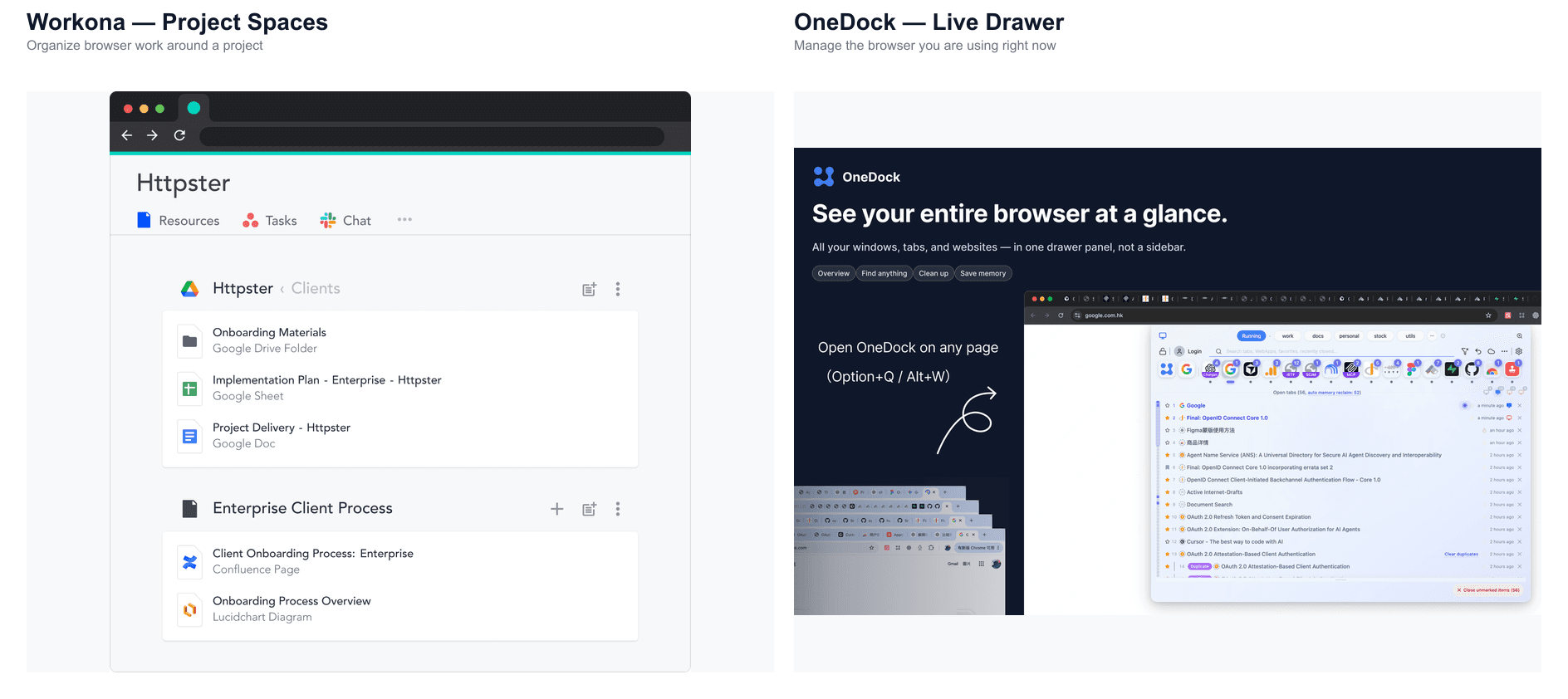
If your work is organized around projects
Say you're working on a website redesign that will take several weeks.
You have research, documents, analytics, communication tools, and reference pages that belong to the project. You may leave the project for a few days, work on something else, then come back and want the same context again.
This is where Workona's model makes sense.
Workona uses Spaces as project-oriented workspaces. You can organize tabs and other resources around a project, let the workspace autosave as you work, and switch between Spaces when you move from one project to another.
The project becomes the thing you organize first.
Website redesign
├── Research
├── Docs
├── Analytics
└── Reference pages
That structure is useful when your browser work naturally breaks into distinct, ongoing projects.
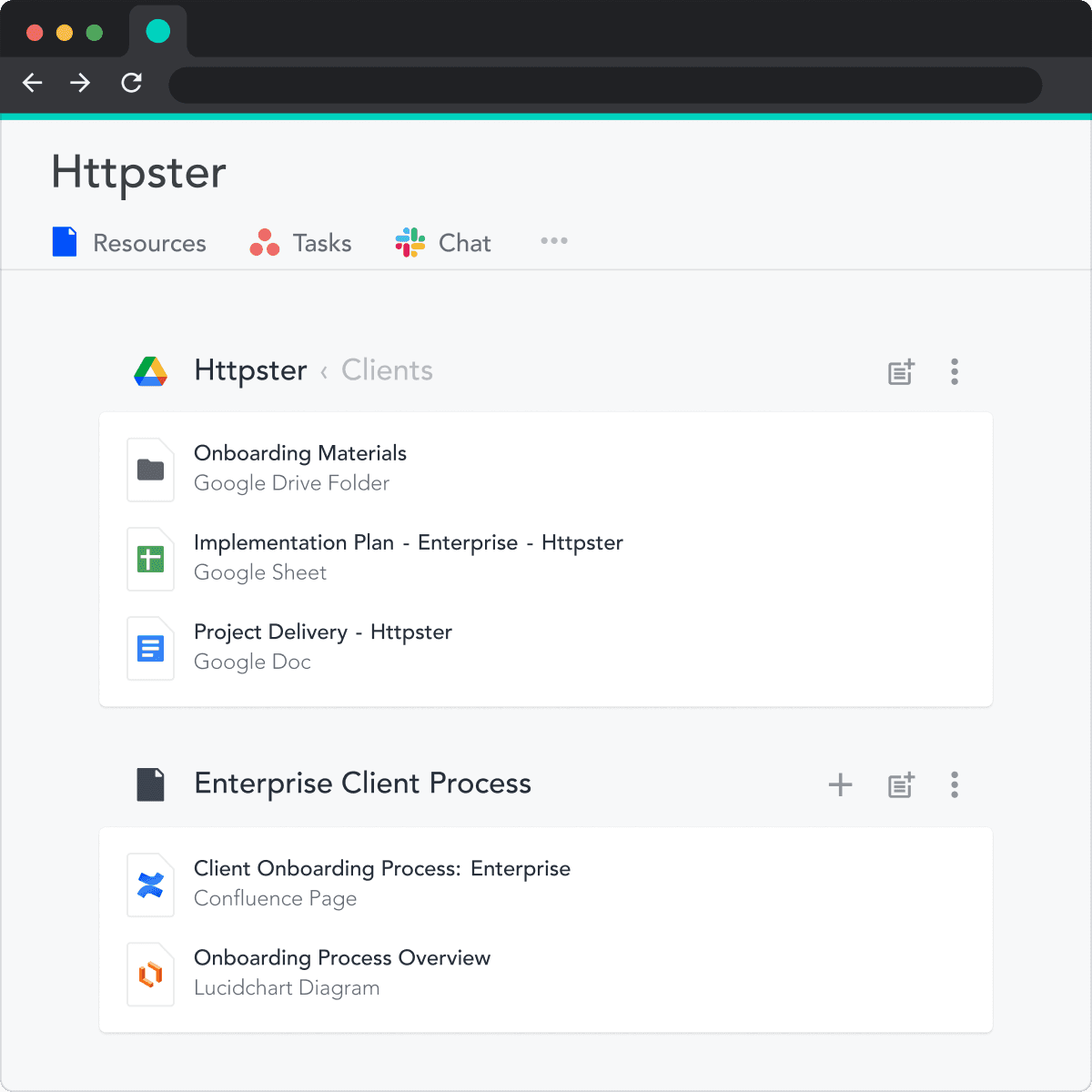
Workona also offers features around cloud synchronization, tab suspension, search, integrations, and collaboration. Its capabilities can change over time, so check the official Workona website or current Chrome Web Store listing for the latest details.
If the problem is your browser right now
Now take the same 30 tabs, but forget about projects for a moment.
You just want to answer a few questions:
- Where is the page I was looking at?
- Which window has it?
- How many copies of this site are open?
- What can I close?
- Can I get back a tab if I close the wrong one?
- Which background pages can be released from memory without losing the tabs?
These are live browser-management problems.
OneDock's Drawer is built around them. Open it from any page and you can see tabs across browser windows, search for what is open, filter by domain, monitor windows, and clean things up without having to reorganize everything into a project first.
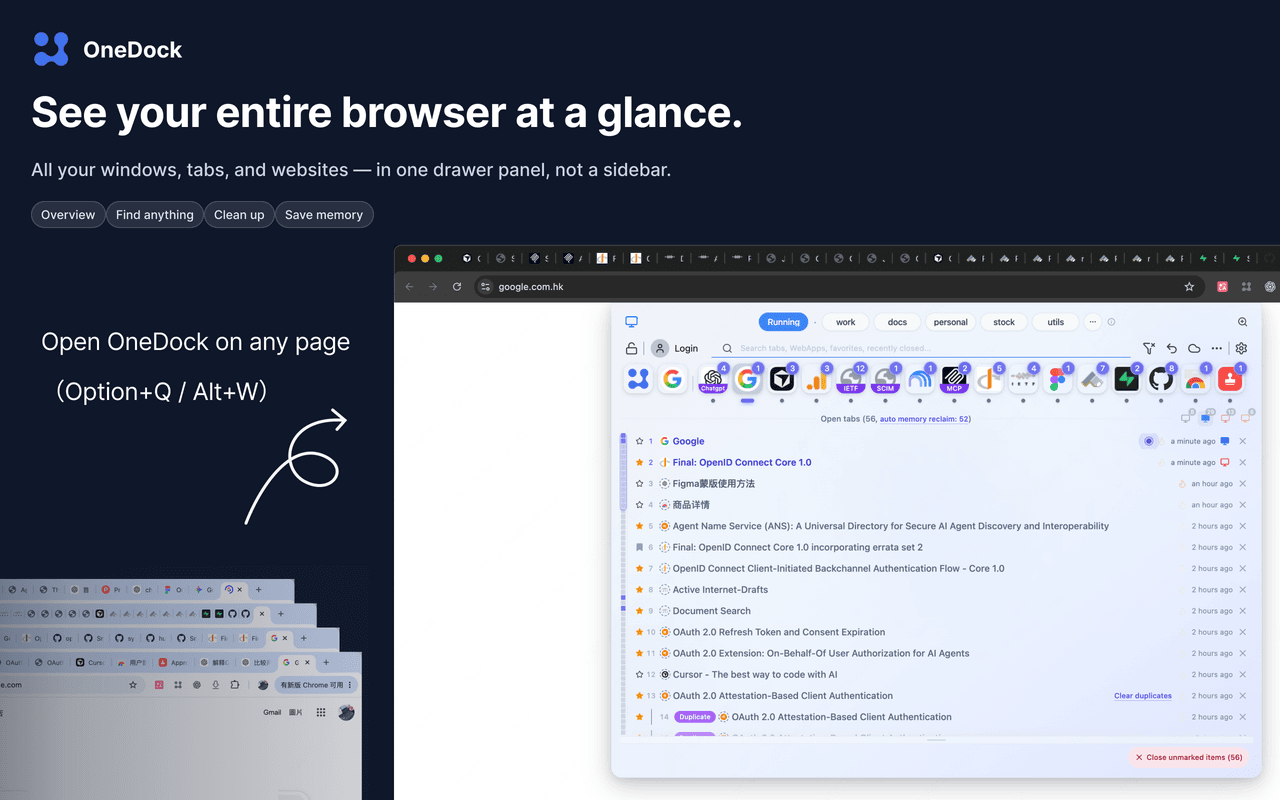
The browser stays the browser. OneDock gives you a way to manage its current state.
The difference is easier to see in everyday workflows
| Dimension | OneDock | Workona |
|---|---|---|
| Primary organizing unit | The live browser: tabs, windows, sites | Projects and Spaces |
| When you have too many tabs open | Search, filter, locate, and clean up the current tabs | Organize the relevant work into a Space |
| Multiple browser windows | View and manage tabs across windows | Keep work organized within project Spaces |
| Finding an open page | Search the current browser | Search within your organized work context |
| Cleaning up temporary tabs | Close tabs, mark them for later cleanup, and recover recent closes | Manage the project workspace |
| Returning to ongoing work | Continue from the browser's current state | Switch back to a saved project Space |
| Long-running projects | Can manage the tabs while you work | A core part of the workspace model |
| Background tabs | Auto Memory Release can discard background pages while keeping their tabs visible | Tab suspension is part of Workona's browser workflow |
| Organization style | Lightweight and centered on what is open now | Structured around projects |
| Best question to ask | "What's open, and what do I need to do with it?" | "Which project am I working on?" |
The choice often comes down to that last row.
If you regularly think in terms of projects, Spaces can give your browser a useful structure.
If you mostly think in terms of tabs, windows, websites, and the things currently on your screen, a live browser manager may feel more natural.
OneDock is for managing the live browser
OneDock is useful when the browser itself has become difficult to operate.
You don't need to decide that a collection of tabs is a project before you can work with it. A tab can simply be something you need for the next ten minutes. A window can contain a mixture of unrelated pages. A page can be worth keeping even if you don't know yet where it belongs.
OneDock gives you tools for handling that mess directly:
- Drawer: open a browser-wide control surface without giving up the current page.
- Cross-window view: see and manage tabs across your browser windows.
- Domain filtering: quickly narrow a large set of tabs to one site.
- Window Monitor: keep an eye on what is happening across windows.
- Search: find open tabs and other saved or recently closed items.
- Cleanup: close unwanted tabs in batches instead of hunting through windows.
- Action Recovery: recover recently closed tabs when cleanup goes too far.
- Auto Memory Release: discard background pages to free memory while keeping their tabs in the Dock.
- Local-first: keep the core browser-management experience centered on local browser state.
The goal is fairly practical: make a busy browser easier to see and operate.
Workona is for keeping project context together
Workona takes the opposite starting point.
A project often outlives a single browser session. You may want the same collection of work resources tomorrow, next week, or after switching to another project.
That's the problem a project workspace is good at solving.
Instead of asking which tab you should close, you can ask which Space you need to return to. The workspace provides a persistent context for that work, with features such as autosave, synchronization, search, integrations, and collaboration supporting the broader workflow.
For someone managing several distinct projects, this can be more useful than simply having a better view of the current tabs.
The trade-off is that project organization introduces a layer of structure. If your tabs don't naturally map to projects, you may not need all of that structure.
You can use both
The two workflows can also sit next to each other.
You might use Workona to keep a few long-running projects organized, while using OneDock when you're actively working in Chrome and need to find a tab, clean up a window, or deal with browser clutter.
Think of it as two different levels of organization.
Workona can answer "Where does this work belong?"
OneDock can answer "What's happening in my browser right now?"
You don't have to turn every active tab into a project, and you don't have to give up project workspaces just because you want better control over the browser itself.
OneDock, Workona, and OneTab
There is a useful third point of reference here.
- OneTab = paused. Move tabs out of the active browser and save them for later.
- OneDock = live. Keep working with the browser that is open right now.
- Workona = project. Organize browser work around projects and Spaces.
The right tool depends less on how many tabs you have and more on what you want those tabs to represent.
If you want to preserve project context, look toward Workona. If you want to control a busy, active browser without adding another project layer, OneDock is built for that job.
Workona organizes your browser around projects; OneDock helps you manage the browser you are using right now.
For a OneDock walkthrough, read Getting Started or install from Add to Chrome. See also OneDock and OneTab and the Changelog.
Related guides
Try OneDock in Chrome
See everything, find faster, clean without fear, and keep Chrome light.
Add to Chrome